










ERPNext

Deploy ERPNext on a VPS in One Click

Finance & accountingProject management

Open-source ERP for accounting, inventory, manufacturing, CRM, and HR — one platform, run on your own VPS.

  • Ready in ~15 min
  • Free installation
  • We handle the setup
At a glance
Version
Latest (15.x)
Operating system
Ubuntu Server 24.04 LTS
Minimum RAM
4 GB
License
GPL-3.0
Addressing
IPv4, IPv6
GitHub
40,000
Deployment~15 min
Open source & self-hosted
VPS plans

Choose a VPS plan for ERPNext

Blazing-fast NVMe drives and powerful processors. Take a ready-made plan or build the configuration yourself.
Minex
Perfect for personal projects and small websites.
€3.20/mo
Save €0.80 per month

  • 1 vCPU core
  • 1 GB DDR5 RAM
  • 20 GB NVMe SSD
  • Full root access
  • 1 dedicated IPv4
  • 1 TB traffic
Basex
A great balance of power and affordable price.
€4.80/mo
Save €1.20 per month

  • 2 vCPU cores
  • 2 GB DDR5 RAM
  • 40 GB NVMe SSD
  • Full root access
  • 1 dedicated IPv4
  • 2 TB traffic
Most popular
Corex
For growing applications and businesses.
€7.20/mo
Save €1.80 per month

  • 4 vCPU cores
  • 4 GB DDR5 RAM
  • 50 GB NVMe SSD
  • Full root access
  • 1 dedicated IPv4
  • Unlimited traffic
Midex
Resources for high-load projects.
€9.60/mo
Save €2.40 per month

  • 4 vCPU cores
  • 6 GB DDR5 RAM
  • 60 GB NVMe SSD
  • Full root access
  • 1 dedicated IPv4
  • Unlimited traffic
Proex
Maximum power and scalability.
€12.00/mo
Save €3.00 per month

  • 6 vCPU cores
  • 8 GB DDR5 RAM
  • 70 GB NVMe SSD
  • Full root access
  • 1 dedicated IPv4
  • Unlimited traffic
Scalex
Resources for scaling.
€16.00/mo
Save €4.00 per month

  • 6 vCPU cores
  • 10 GB DDR5 RAM
  • 150 GB NVMe SSD
  • Full root access
  • 1 dedicated IPv4
  • Unlimited traffic
Maxex
A large reserve of power.
€44.00/mo
Save €11.00 per month

  • 8 vCPU cores
  • 16 GB DDR5 RAM
  • 200 GB NVMe SSD
  • Full root access
  • 1 dedicated IPv4
  • Unlimited traffic
Apex
The top configuration.
€79.99/mo
Save €20.00 per month

  • 16 vCPU cores
  • 32 GB DDR5 RAM
  • 400 GB NVMe SSD
  • Full root access
  • 1 dedicated IPv4
  • Unlimited traffic

What you can do with ERPNext

ERPNext is a fully open-source ERP system that unifies accounting, inventory, manufacturing, CRM, and HR into a single connected platform, built for small and mid-sized companies outgrowing spreadsheets and disconnected point tools. Every module — from a sales quotation to a warehouse transfer to a payroll run — shares one database, so numbers stay consistent across departments instead of living in five different apps.

What sets it apart from commercial ERPs is the absence of per-user licensing: the GPLv3 code is yours to run, inspect, and modify without seat fees eating into margins as headcount grows. Choosing an ERPNext self hosted setup over the vendor's own cloud also means your financial ledgers and HR records sit on infrastructure you control rather than shared multi-tenant compute — and a straightforward ERPNext installation on a VPS avoids the CPU-time caps that shape Frappe Cloud's entry-level pricing tiers.

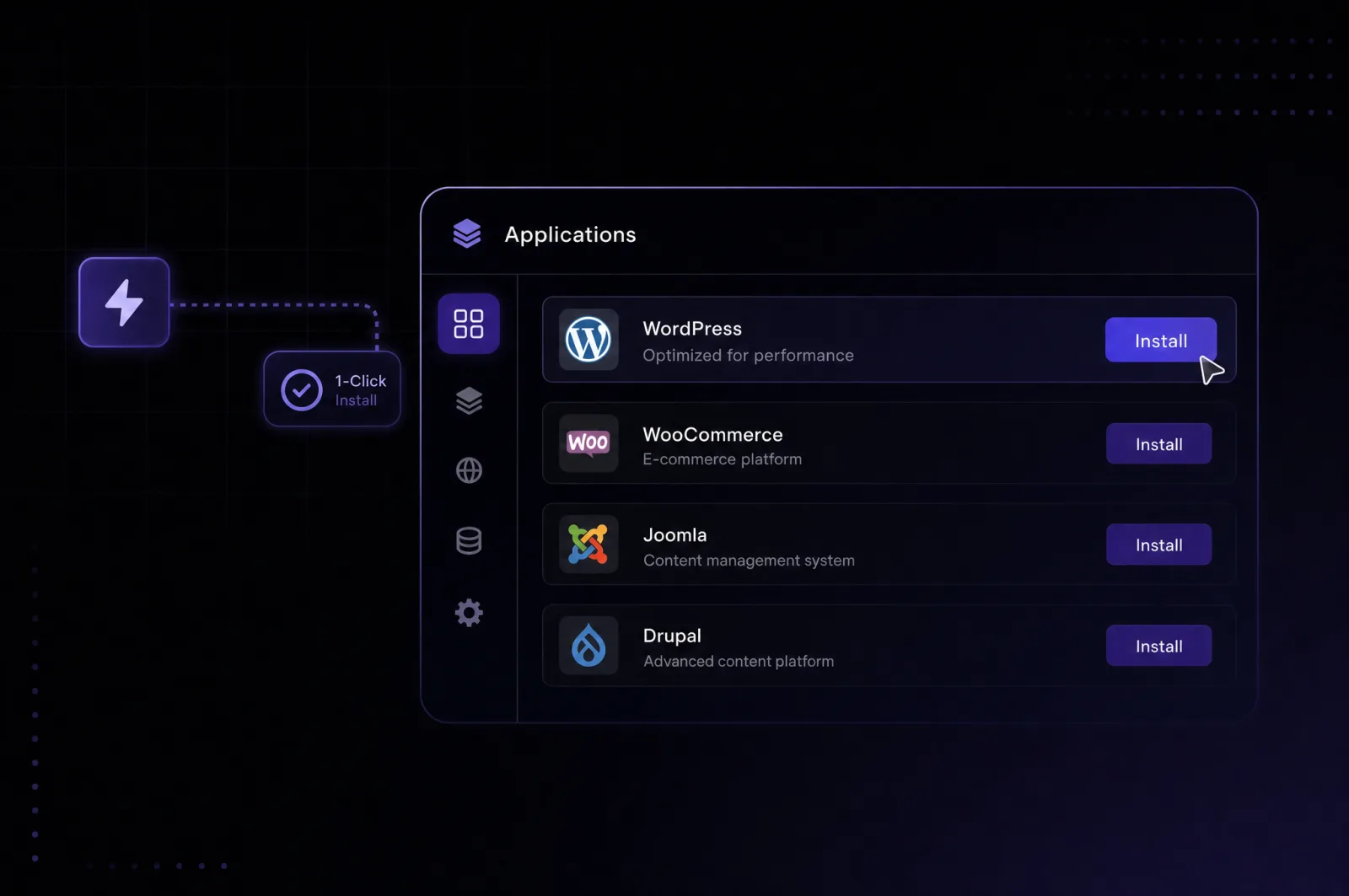
The applications screen of the control panel with one-click install

ERPNext features

A server surrounded by app icons — applications running on a VPS

ERPNext covers the full operating cycle of a business, from the first sales quote to the closing financial statement, inside one connected system. Deployed as an ERPNext vps docker stack, every module below ships together rather than as separately purchased add-ons.

01

Accounting & Financial Reporting

Multi-currency ledgers, bank reconciliation, and configurable financial statement templates.

02

Inventory & Stock

Batch and serial tracking with real-time stock valuation across multiple warehouses.

03

Manufacturing

Multi-level bills of materials, work orders, and job cards for shop-floor production planning.

04

CRM & Sales

Lead and deal tracking through to quotations and sales orders tied directly to invoicing.

05

Procurement

Request-for-quotation comparisons and purchase orders linked to supplier receiving.

06

HR & Payroll (Frappe HR)

Employee records, attendance, leave management, and payroll runs.

07

Point of Sale

Retail checkout screens that sync back to central stock in real time.

08

Workflow Automation

Conditional approval chains and scheduled jobs that handle one click automation for ERPNext processes like leave sign-off or purchase approval.

Requirements

Which server to run it on

Minimum requirements for ERPNext and the configuration worth starting with.
Minimum
  • CPU2 vCPU
  • Minimum RAM4 GB
  • Disk40 GB
Recommended
VPS Corex
  • CPU4 vCPU
  • Minimum RAM4 GB
  • Disk50 GB

Installation is free — you only pay for the server

Getting started

How to deploy ERPNext

Three steps and the app is running on your server.
Step 1
Choose a server

Pick a plan with headroom for the MariaDB and Redis services running alongside ERPNext — this is what lets you install ERPNext on a VPS without the sluggishness shared hosting is known for.

Step 2
Pick the app

Select ERPNext in the marketplace, and Leneex runs the ERPNext one click install — Docker Compose stack, database, and site creation — in the background.

Step 3
Get your credentials

Once deployment finishes, you'll get the site URL and Administrator login needed for your first sign-in to the ERPNext desk.

Why us

Why Host ERPNext on Leneex

Speed, protection and support you can rely on — on every plan, with no hidden limits.
Deployment speed
An ERPNext instance isn't one container — it's backend, frontend, MariaDB, Redis, and background workers wired together. Manual setup of this stack takes hours; on Leneex it's ready in minutes.
Free installation
ERPNext already ships with zero licensing cost under GPLv3 — Leneex doesn't add a markup on top of software that was built to have none.
DDoS protection
The ERPNext login screen is reachable from the public internet the moment staff or customers need remote access to invoices or stock data, which makes it a real target — DDoS filtering keeps that entry point available.
Control and support
Manufacturing and accounting teams often add custom Frappe apps or need bench-level database tuning — root access matters here, and engineers on call help when a stuck background job queue needs a restart.
99.9% uptime with SLA compensation
ERPNext runs live invoicing, stock, and payroll during business hours — downtime doesn't just annoy users, it blocks the sales floor and the warehouse from closing transactions.
Flexible payment
SMB and manufacturing customers running ERPNext are often outside the EU or need an invoice for a legal entity — Visa/Mastercard, crypto, or invoiced billing covers that without friction.
What to choose

ERPNext: Self-Hosted vs Cloud — Which to Choose

We compare cost, control over your data and limits, so the choice is an informed one.
Frappe Cloud
Self-hosted on LeneexRecommended
Resources and limitsEntry plans meter CPU-time by the day (e.g. 0.5–2 hours/day on lower tiers), shared with other tenantsDedicated CPU and RAM at all times, no daily compute cap
Control and accessSSH/DB access only on paid tiers; app installs limited to the Frappe Marketplace unless on a private benchFull root access to the server, any custom Frappe app or bench command
Feature limitsSame ERPNext code, but storage, database size, and CPU-time scale with the price tier you pickFull ERPNext feature set, unrestricted by plan tier
ScalingMove up a paid tier when daily CPU-time runs out mid-cycleResize the VPS plan at any time as data volume grows
CostStarts around $5/month but climbs with compute usage and number of sitesFlat monthly VPS price regardless of usage spikes
Who it fitsTeams that want zero server maintenance and are fine with usage-based billingTeams needing custom Frappe apps, heavier transaction volume, or predictable flat costs

For a business running multiple custom Frappe apps or processing high transaction volumes, self-hosted ERPNext vps docker deployment tends to work out cheaper than scaling up Frappe Cloud's compute-based tiers, and it removes the daily CPU-time ceiling entirely. Frappe Cloud still makes sense for teams that want Frappe Technologies handling every upgrade and backup themselves.

Frequently Asked Questions about ERPNext on VPS

What people ask most about ERPNext and our servers.

  • Yes — ERPNext supports standard bench backup/restore, so a site backup (database dump plus files) created elsewhere can typically be restored onto your new instance; exact restore steps for the Leneex template should be checked against your source version.

  • Nothing is touched — your ERPNext site, database, and files stay on the same disk, and a plan upgrade only adds CPU and RAM capacity.

  • Leneex provisions SSL for one-click deployments as part of the platform; the exact automation flow for ERPNext's specific domain setup should be confirmed.

  • It depends more on concurrent logged-in users and background job load than headcount, since MariaDB and the worker queue are what consume RAM under load — start with a mid-tier plan if several departments will be active at once.

  • On a self-hosted VPS, version upgrades run through the bench/Docker image update process and are the account owner's responsibility unless Leneex documentation states otherwise for its one-click template.

What's already running

The one-click deployment installs the ERPNext Docker Compose stack described in the official Frappe repository: a backend container running the ERPNext/Frappe app, an nginx frontend, MariaDB as the database, Redis for caching and queues, and background workers processing scheduled and async jobs. A site is created and the ERPNext app is installed onto it automatically during setup. Whether Leneex's specific template pre-configures the Administrator password or generates it randomly, and exactly where that credential surfaces in the panel, should be confirmed against the platform's own documentation.

First login

Open your site's domain or IP in a browser to reach the ERPNext desk login screen. The default account is named Administrator — the password for it is set at site-creation time and, on most one-click templates, is surfaced somewhere in the hosting panel rather than sent by email.

On a fresh ERPNext site, the first login typically triggers a setup wizard asking for company name, country (which pre-loads a matching chart of accounts), and currency — unless Leneex's template has already completed this step during deployment.

Next steps after first login

From the ERPNext desk, add your company details, invite additional users under the Administrator account, and enable the modules you need (Manufacturing, HR, POS) from Module Settings — everything ships installed but not all modules are necessarily active by default. For CLI-level tasks like installing an additional Frappe app (Frappe HR, for example) or running a manual bench migrate, you'll need shell access to the container — whether Leneex exposes this via SSH on the VPS itself should be checked in your account documentation.

Deploy ERPNext in about 15 minutes

Choose a server — we do the rest: install, configure and send you the credentials.