










WordPressPopular

Deploy WordPress on a VPS in One Click

CMS & websites

The world's most popular content management system for websites, blogs, and online stores.

  • Ready in ~5 min
  • Free installation
  • We handle the setup
At a glance
Version
Latest (7.x)
Operating system
Ubuntu Server 24.04 LTS
Minimum RAM
2 GB
License
GPL-2.0
Addressing
IPv4, IPv6
GitHub
21,000
Deployment~5 min
Open source & self-hosted
VPS plans

Choose a VPS plan for WordPress

Blazing-fast NVMe drives and powerful processors. Take a ready-made plan or build the configuration yourself.
Minex
Perfect for personal projects and small websites.
€3.20/mo
Save €0.80 per month

  • 1 vCPU core
  • 1 GB DDR5 RAM
  • 20 GB NVMe SSD
  • Full root access
  • 1 dedicated IPv4
  • 1 TB traffic
Basex
A great balance of power and affordable price.
€4.80/mo
Save €1.20 per month

  • 2 vCPU cores
  • 2 GB DDR5 RAM
  • 40 GB NVMe SSD
  • Full root access
  • 1 dedicated IPv4
  • 2 TB traffic
Most popular
Corex
For growing applications and businesses.
€7.20/mo
Save €1.80 per month

  • 4 vCPU cores
  • 4 GB DDR5 RAM
  • 50 GB NVMe SSD
  • Full root access
  • 1 dedicated IPv4
  • Unlimited traffic
Midex
Resources for high-load projects.
€9.60/mo
Save €2.40 per month

  • 4 vCPU cores
  • 6 GB DDR5 RAM
  • 60 GB NVMe SSD
  • Full root access
  • 1 dedicated IPv4
  • Unlimited traffic
Proex
Maximum power and scalability.
€12.00/mo
Save €3.00 per month

  • 6 vCPU cores
  • 8 GB DDR5 RAM
  • 70 GB NVMe SSD
  • Full root access
  • 1 dedicated IPv4
  • Unlimited traffic
Scalex
Resources for scaling.
€16.00/mo
Save €4.00 per month

  • 6 vCPU cores
  • 10 GB DDR5 RAM
  • 150 GB NVMe SSD
  • Full root access
  • 1 dedicated IPv4
  • Unlimited traffic
Maxex
A large reserve of power.
€44.00/mo
Save €11.00 per month

  • 8 vCPU cores
  • 16 GB DDR5 RAM
  • 200 GB NVMe SSD
  • Full root access
  • 1 dedicated IPv4
  • Unlimited traffic
Apex
The top configuration.
€79.99/mo
Save €20.00 per month

  • 16 vCPU cores
  • 32 GB DDR5 RAM
  • 400 GB NVMe SSD
  • Full root access
  • 1 dedicated IPv4
  • Unlimited traffic

What you can do with WordPress

WordPress is an open-source content management system that powers everything from personal blogs to corporate news portals and online stores. Its plugin-and-theme architecture makes it the default choice for teams that need a flexible publishing platform without writing custom code for every page.

What separates WordPress from hosted website builders is the sheer depth of its ecosystem — tens of thousands of plugins covering SEO, e-commerce, forms, and membership sites, plus a REST API for connecting external tools. Running it as WordPress self hosted on your own VPS removes the plugin restrictions and storage caps that come with managed plans, and it's the only way to get full server-level access for caching, custom PHP configuration, or a staging environment.

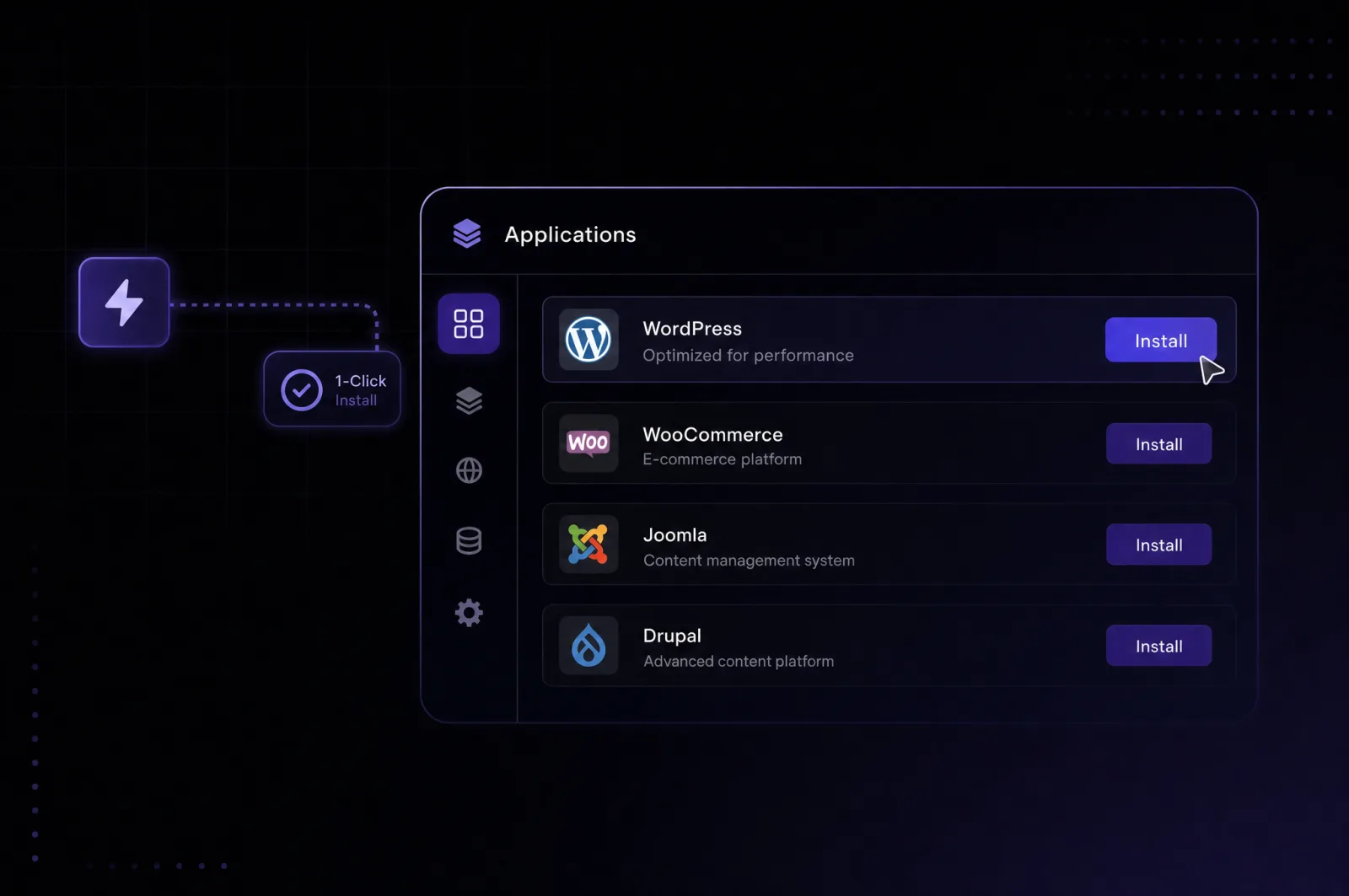
The applications screen of the control panel with one-click install

WordPress features

A server surrounded by app icons — applications running on a VPS

WordPress ships with a core set of publishing tools, and its real power comes from extending them with plugins for the exact workflow you need.

01

Block editor (Gutenberg)

Build pages visually from content blocks without touching HTML.

02

Plugin ecosystem

Extend the CMS install with tools for SEO, forms, caching, or backups in a few clicks.

03

WooCommerce integration

Turn the site into a full online store with product catalogs, cart, and checkout.

04

REST API

Connect WordPress to external apps, mobile clients, or automation tools like n8n.

05

Multisite mode

Manage several sites from a single WordPress vps docker deployment and one admin panel.

06

User roles and permissions

Assign editors, authors, and contributors distinct access levels for team publishing.

07

Theme customization

Change layout and branding independently of content through a dedicated theme layer.

08

Scheduled publishing

Queue posts and pages to go live automatically via WP-Cron.

Requirements

Which server to run it on

Minimum requirements for WordPress and the configuration worth starting with.
Minimum
  • CPU1 vCPU
  • Minimum RAM2 GB
  • Disk20 GB
Recommended
VPS Minex
  • CPU1 vCPU
  • Minimum RAM1 GB
  • Disk20 GB

Installation is free — you only pay for the server

Getting started

How to deploy WordPress

Three steps and the app is running on your server.
Step 1
Choose a server

Pick a plan with enough RAM for your expected traffic — media-heavy sites and WooCommerce stores need more headroom than a simple blog.

Step 2
Pick the app

Mark WordPress in the one click install list and Leneex provisions the web server, PHP, and MySQL database automatically.

Step 3
Get your credentials

Retrieve your wp-admin login and database credentials from the deployment panel to complete the WordPress setup wizard.

Why us

Why Host WordPress on Leneex

Speed, protection and support you can rely on — on every plan, with no hidden limits.
Deployment speed
A blog sitting empty for hours loses momentum before the first post goes live. One click automation WordPress on Leneex gets the CMS, database, and web server running in minutes, not the half-day it takes to configure a LAMP stack by hand.
Free installation
Migrating from a shared host or WordPress.com often means paying an agency just to move the database and reinstall plugins. Leneex handles the initial WordPress deployment at no extra cost, so that budget stays for themes and plugins instead.
DDoS protection
Public WordPress sites are a constant target for bot traffic, comment spam, and login brute-force attempts against wp-login.php. Built-in DDoS protection keeps the site reachable during traffic spikes instead of buckling under an attack.
Control and support
Advanced caching plugins, custom PHP memory limits, and WP-CLI all need root access that shared hosting never grants. Full root and API access lets you tune the server for WordPress specifically, with engineers on call if a plugin conflict takes the site down.
99.9% uptime with SLA compensation
An online store built with WooCommerce loses real sales for every minute it's offline. The 99.9% uptime SLA with compensation means downtime carries a guaranteed cost to the provider, not just to your traffic.
Flexible payment
Agencies running client WordPress installs need invoices for accounting, while independent developers often prefer paying with crypto. Leneex supports both alongside standard cards, without forcing one payment method on every kind of user.
What to choose

WordPress: Self-Hosted vs Cloud — Which to Choose

We compare cost, control over your data and limits, so the choice is an informed one.
WordPress.com
Self-hosted on LeneexRecommended
Resources and limitsShared infrastructure on Free–Business tiers; storage capped from 1GB (Free) to 50GB (Business)Dedicated CPU/RAM, no shared-neighbor slowdown during traffic spikes
Control and accessNo file system or server access; plugin installation locked below the Business planRoot access, custom PHP config, any plugin or theme installable
Feature limitsFree/Personal tiers block custom plugins and themes entirely; ads shown on free sitesFull core WordPress functionality plus unrestricted plugin ecosystem from install
ScalingScaling means jumping to a higher-priced plan tier, each with its own feature ceilingUpgrade RAM/CPU on the VPS as traffic grows, same install
CostPlans scale from free to roughly €65/month (Commerce), with storage and features tied to each tierFixed VPS price regardless of traffic or plugin count
Who it fitsWriters and small blogs that want zero server management and accept fewer customization optionsStores, agencies, and sites needing custom plugins, caching, or high traffic

WordPress.com's official cloud plans cap plugin access and storage well below what a production WooCommerce store or media-heavy blog typically needs. Self-hosted WordPress on a VPS removes those tier-based restrictions entirely, at a fixed monthly cost that doesn't rise with traffic. For a personal blog with no e-commerce ambitions, WordPress.com's managed plans remain the simpler choice.

Frequently Asked Questions about WordPress on VPS

What people ask most about WordPress and our servers.

  • Yes — export the site with a plugin like All-in-One WP Migration or move the wp-content folder and database dump manually, then import them into the new install.

  • The WordPress installation, database, and files stay untouched; you get more CPU and RAM immediately after the upgrade with no reinstall required.

  • Yes, Leneex provisions SSL for the domain pointed at your WordPress installation so the site loads over HTTPS from the start.

  • WordPress core, themes, and plugins are updated by you through the wp-admin dashboard or WP-CLI — Leneex manages the server layer, not the CMS itself.

What's already set up

The one-click install provisions the full stack WordPress needs to run: a web server (Nginx or Apache), PHP, and a MySQL/MariaDB database, all pre-connected so WordPress core is functional immediately after deployment. WP-Cron, WordPress's built-in task scheduler, is enabled by default and handles scheduled posts and plugin background jobs without any extra configuration..

First login

The WordPress admin panel lives at the /wp-admin path of your domain or server IP — that's where you manage posts, plugins, and themes.. During this first visit you'll set the site title, admin username, and password directly in the WordPress interface — this step happens inside WordPress itself, not in the Leneex panel.

Database and file structure

Site configuration — including database name, username, and connection details — lives in the wp-config.php file in the WordPress root directory. Uploaded media, active theme files, and installed plugins are stored under wp-content/, the folder you'll back up before any major update. If a plugin conflict breaks the admin panel, renaming its folder inside wp-content/plugins/ via SFTP disables it without needing dashboard access.

Practical next steps

Installing a caching plugin (such as WP Super Cache or W3 Total Cache) early keeps page load times low as the VPS handles the LAMP stack, but WordPress itself doesn't tune caching automatically. Setting a strong admin password and installing a security plugin like Wordfence is worth doing before publishing the first real post, since wp-login.php is a common target for automated brute-force attempts on any public WordPress vps docker deployment.

Deploy WordPress in about 5 minutes

Choose a server — we do the rest: install, configure and send you the credentials.