










Glance

Deploy Glance on a VPS in One Click

Utilities

Self-hosted dashboard that gathers RSS feeds, service status, and bookmarks on one page you fully control.

  • Ready in ~3 min
  • Free installation
  • We handle the setup
At a glance
Version
Latest (0.8)
Operating system
Ubuntu Server 24.04 LTS
Minimum RAM
1 GB
License
AGPL-3.0
Addressing
IPv4, IPv6
GitHub
37,000
Deployment~3 min
Open source & self-hosted
VPS plans

Choose a VPS plan for Glance

Blazing-fast NVMe drives and powerful processors. Take a ready-made plan or build the configuration yourself.
Minex
Perfect for personal projects and small websites.
€3.20/mo
Save €0.80 per month

  • 1 vCPU core
  • 1 GB DDR5 RAM
  • 20 GB NVMe SSD
  • Full root access
  • 1 dedicated IPv4
  • 1 TB traffic
Basex
A great balance of power and affordable price.
€4.80/mo
Save €1.20 per month

  • 2 vCPU cores
  • 2 GB DDR5 RAM
  • 40 GB NVMe SSD
  • Full root access
  • 1 dedicated IPv4
  • 2 TB traffic
Most popular
Corex
For growing applications and businesses.
€7.20/mo
Save €1.80 per month

  • 4 vCPU cores
  • 4 GB DDR5 RAM
  • 50 GB NVMe SSD
  • Full root access
  • 1 dedicated IPv4
  • Unlimited traffic
Midex
Resources for high-load projects.
€9.60/mo
Save €2.40 per month

  • 4 vCPU cores
  • 6 GB DDR5 RAM
  • 60 GB NVMe SSD
  • Full root access
  • 1 dedicated IPv4
  • Unlimited traffic
Proex
Maximum power and scalability.
€12.00/mo
Save €3.00 per month

  • 6 vCPU cores
  • 8 GB DDR5 RAM
  • 70 GB NVMe SSD
  • Full root access
  • 1 dedicated IPv4
  • Unlimited traffic
Scalex
Resources for scaling.
€16.00/mo
Save €4.00 per month

  • 6 vCPU cores
  • 10 GB DDR5 RAM
  • 150 GB NVMe SSD
  • Full root access
  • 1 dedicated IPv4
  • Unlimited traffic
Maxex
A large reserve of power.
€44.00/mo
Save €11.00 per month

  • 8 vCPU cores
  • 16 GB DDR5 RAM
  • 200 GB NVMe SSD
  • Full root access
  • 1 dedicated IPv4
  • Unlimited traffic
Apex
The top configuration.
€79.99/mo
Save €20.00 per month

  • 16 vCPU cores
  • 32 GB DDR5 RAM
  • 400 GB NVMe SSD
  • Full root access
  • 1 dedicated IPv4
  • Unlimited traffic

What you can do with Glance

Glance is a self-hosted dashboard written in Go that pulls RSS feeds, weather, stock prices, and service status into a single page defined by one YAML file. It fits homelab owners and small ops teams who want one entry point to their tools instead of a bookmarks folder scattered across browsers and devices. Glance installation itself takes minutes — a single binary or Docker image with no database to manage.

What sets it apart is the config-first approach: every widget, from Hacker News threads to Docker container status, lives in plain glance.yml instead of a web settings panel. That same file usually lists internal IPs, ports, and admin-panel links, which is exactly why running Glance self hosted on your own VPS makes more sense than pointing a third-party service at your infrastructure map.

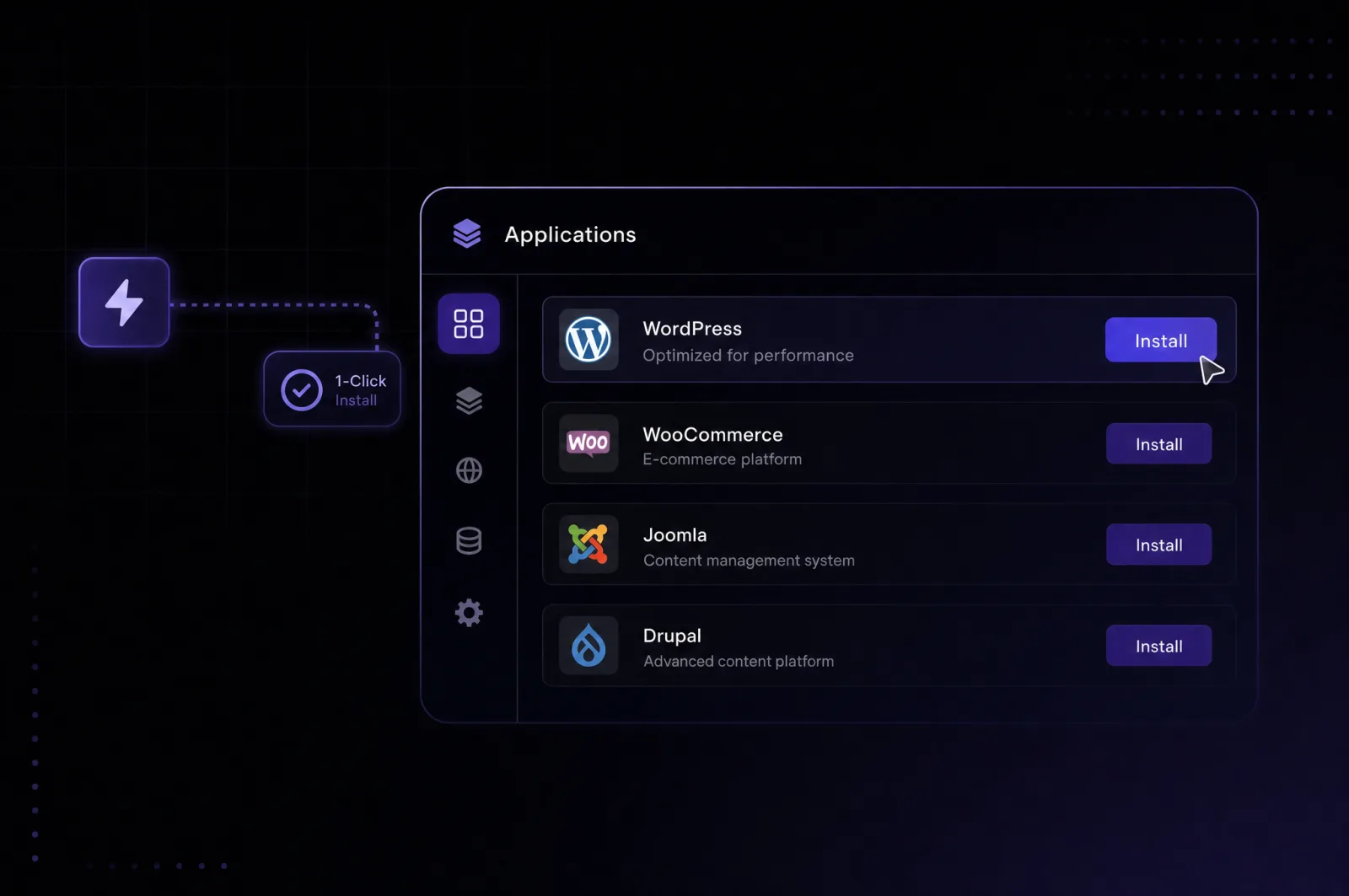
The applications screen of the control panel with one-click install

Glance features

A server surrounded by app icons — applications running on a VPS

Beyond feed aggregation, Glance ships with a set of purpose-built widgets that turn it into a lightweight monitoring front page for your homelab or team stack.

01

RSS aggregator

Pulls and caches feeds from multiple blogs and sites with per-feed refresh intervals.

02

Site Monitor

Pings internal and external URLs and flags when a service goes down.

03

Docker Containers widget

Reads docker.sock to show the live status of containers running on the same VPS.

04

Releases tracker

Watches GitHub, GitLab, and Docker Hub repos and lists their latest tagged releases.

05

Multi-page layout

Several dashboard tabs, each with its own widget grid, all defined in glance.yml.

06

Community widgets

Extendable through the glanceapp/community-widgets repository for use cases the core app doesn't cover.

07

Search box

An embedded search bar that queries your preferred engine without leaving the page.

Requirements

Which server to run it on

Minimum requirements for Glance and the configuration worth starting with.
Minimum
  • CPU1 vCPU
  • Minimum RAM1 GB
  • Disk10 GB
Recommended
VPS Minex
  • CPU1 vCPU
  • Minimum RAM1 GB
  • Disk20 GB

Installation is free — you only pay for the server

Getting started

How to deploy Glance

Three steps and the app is running on your server.
Step 1
Choose a server

Glance is a single Go binary with minimal RAM needs, but if you plan to monitor other containers on the same box, pick a tariff with headroom for those services too.

Step 2
Pick the app

This triggers Glance one click install, which pulls the glanceapp/glance Docker image and prepares a starting glance.yml — no need to install Glance on vps manually over SSH.

Step 3
Get your credentials

You'll get the server IP and port to open the dashboard directly, since Glance has no built-in login screen by default.

Why us

Why Host Glance on Leneex

Speed, protection and support you can rely on — on every plan, with no hidden limits.
Deployment speed
Glance is a single Go binary with no database migrations, so the gap between hosting for Glance and a working dashboard is measured in minutes, not a setup wizard.
Free installation
The whole point of Glance is skipping paid dashboard SaaS — paying to install the self-hosted alternative would defeat that purpose, so it's free.
DDoS protection
If your team shares the dashboard link to check service status from outside the LAN, an uptime hit on Glance itself hides the very outage data it's supposed to surface.
Control and support
The Docker Containers widget needs access to docker.sock, and custom widgets from community-widgets often need extra permissions — both require real root access, not a managed panel with restrictions.
99.9% uptime with SLA compensation
Glance's own Site Monitor widget exists to catch when other services go down — hosting it on infrastructure with a guaranteed uptime SLA keeps the monitor itself from becoming the blind spot.
Flexible payment
Homelab users and dev teams evaluating Glance vps docker setups rarely fit one billing profile, so paying by card, crypto, or invoice keeps the choice on your side.
What to choose

Glance: Self-Hosted vs Cloud — Which to Choose

Glance has no official paid cloud version — it's a pure open-source project meant to be self-hosted, so the comparison below shows Glance on a VPS against a typical hosted status-page/dashboard SaaS in the same category.
Ready-made SaaS
Self-hosted on LeneexRecommended
Resources and limitsFree/basic plans often limit the number of sources, channels, or Site Monitor checksDedicated CPU/RAM exclusively for your dashboard, with no limits on the number of widgets
Control and accessConfiguration through a web interface, without access to the server backendDirect access to glance.yml, docker.sock, and the server’s file system
Feature limitsSome widgets (container monitoring, custom integrations) are usually unavailable on basic plansFull access to all widgets and community widgets without restrictions
ScalingPricing depends on the SaaS provider’s plan, often with additional charges for higher limitsUpgrade your VPS plan with one click as the number of monitored services grows
CostSubscription costs increase with the number of monitored sources or usersFixed VPS pricing regardless of the number of widgets and checks
Who it fitsIdeal for those who need a public status page without server configurationIdeal for those whose dashboards connect to internal infrastructure (IP, docker.sock)

Conclusion: Glance has no official cloud-hosted version — it is an exclusively self-hosted project, so there is essentially nothing to compare it with. Deploying it on a VPS is a practical way to get a unified dashboard for your services with full control over configuration and access to docker.sock, which a managed dashboard simply cannot provide.

Frequently Asked Questions about Glance on VPS

What people ask most about Glance and our servers.

  • Yes — your whole setup lives in a single glance.yml file, so upgrading the tariff just moves the same file to a server with more resources, with no reconfiguration needed.

  • SSL isn't part of Glance itself; you'll need a reverse proxy (like Nginx or Caddy) in front of it to terminate HTTPS, same as with any self-hosted app exposed to the internet.

  • Glance doesn't have per-account logins by default — everyone who reaches the URL sees the same dashboard — so "users" here means concurrent browser tabs, which even an entry-level VPS handles comfortably.

  • You do — Glance doesn't auto-update itself, so bumping the version means pulling a newer glanceapp/glance Docker image and restarting the container.

  • Yes, as long as you back up the glance.yml file (and any included YAML files) — that's the only state Glance keeps outside of runtime cache.

What's already set up

The one-click deploy runs Glance as a Docker container from the official glanceapp/glance image, listening on port 8080 inside the container (commonly mapped to 8080 on the host as well). The dashboard's entire state — pages, widgets, and settings — lives in a single mounted glance.yml file rather than a database, and Glance watches that file for changes, reloading the dashboard automatically whenever you save an edit. The default configuration shipped in one-click installs is typically the project's example file (RSS feeds, sample Twitch channels, generic widgets), so it's meant to be replaced with your own sources rather than used as-is.

First access

Open the server's IP address on the mapped port (http://your-server-ip:8080 in a typical setup) directly in your browser — there's no separate admin-panel path, since the dashboard itself is the entry point. By default Glance has no login screen: anyone with the URL sees the full dashboard, which is fine on a private/internal network but worth locking down before you put anything sensitive on the page.

Editing your dashboard

Every widget — RSS feeds, the Site Monitor list, Docker container tracking — is a YAML block inside glance.yml, grouped into columns and, optionally, multiple pages. Because there's no web-based settings UI, changes are made by editing this file directly (via SFTP, a mounted volume, or a text editor on the server) and saving — no restart command required, thanks to the built-in file watcher.

Deploy Glance in about 3 minutes

Choose a server — we do the rest: install, configure and send you the credentials.