










Plane

Deploy Plane on a VPS in One Click

Project management

Open-source project and issue tracking platform with cycles, wikis, and AI on infrastructure you control.

  • Ready in ~10 min
  • Free installation
  • We handle the setup
At a glance
Version
Latest (1.x)
Operating system
Ubuntu Server 24.04 LTS
Minimum RAM
8 GB
License
AGPL-3.0
Addressing
IPv4, IPv6
GitHub
61,000
Deployment~10 min
Open source & self-hosted
VPS plans

Choose a VPS plan for Plane

Blazing-fast NVMe drives and powerful processors. Take a ready-made plan or build the configuration yourself.
Minex
Perfect for personal projects and small websites.
€3.20/mo
Save €0.80 per month

  • 1 vCPU core
  • 1 GB DDR5 RAM
  • 20 GB NVMe SSD
  • Full root access
  • 1 dedicated IPv4
  • 1 TB traffic
Basex
A great balance of power and affordable price.
€4.80/mo
Save €1.20 per month

  • 2 vCPU cores
  • 2 GB DDR5 RAM
  • 40 GB NVMe SSD
  • Full root access
  • 1 dedicated IPv4
  • 2 TB traffic
Most popular
Corex
For growing applications and businesses.
€7.20/mo
Save €1.80 per month

  • 4 vCPU cores
  • 4 GB DDR5 RAM
  • 50 GB NVMe SSD
  • Full root access
  • 1 dedicated IPv4
  • Unlimited traffic
Midex
Resources for high-load projects.
€9.60/mo
Save €2.40 per month

  • 4 vCPU cores
  • 6 GB DDR5 RAM
  • 60 GB NVMe SSD
  • Full root access
  • 1 dedicated IPv4
  • Unlimited traffic
Proex
Maximum power and scalability.
€12.00/mo
Save €3.00 per month

  • 6 vCPU cores
  • 8 GB DDR5 RAM
  • 70 GB NVMe SSD
  • Full root access
  • 1 dedicated IPv4
  • Unlimited traffic
Scalex
Resources for scaling.
€16.00/mo
Save €4.00 per month

  • 6 vCPU cores
  • 10 GB DDR5 RAM
  • 150 GB NVMe SSD
  • Full root access
  • 1 dedicated IPv4
  • Unlimited traffic
Maxex
A large reserve of power.
€44.00/mo
Save €11.00 per month

  • 8 vCPU cores
  • 16 GB DDR5 RAM
  • 200 GB NVMe SSD
  • Full root access
  • 1 dedicated IPv4
  • Unlimited traffic
Apex
The top configuration.
€79.99/mo
Save €20.00 per month

  • 16 vCPU cores
  • 32 GB DDR5 RAM
  • 400 GB NVMe SSD
  • Full root access
  • 1 dedicated IPv4
  • Unlimited traffic

What you can do with Plane

Plane is an open-source project management tool built for software teams who need issue tracking, sprint planning, and a knowledge base in one workspace instead of stitching together Jira, Confluence, and a separate roadmap tool. Engineering teams, product managers, and agencies use it to run cycles, break large initiatives into modules, and keep specs alongside the work items they describe.

What sets Plane apart from most alternatives in this category is that its full Community Edition — issues, cycles, modules, pages, and views — ships free under AGPL-3.0, with no artificial seat cap once it's Plane self hosted on your own machine. Running it as a vps for Plane means your issue history, wiki content, and API keys never leave a server you control, which matters the moment a team handles client data or internal roadmaps it can't put on someone else's cloud.

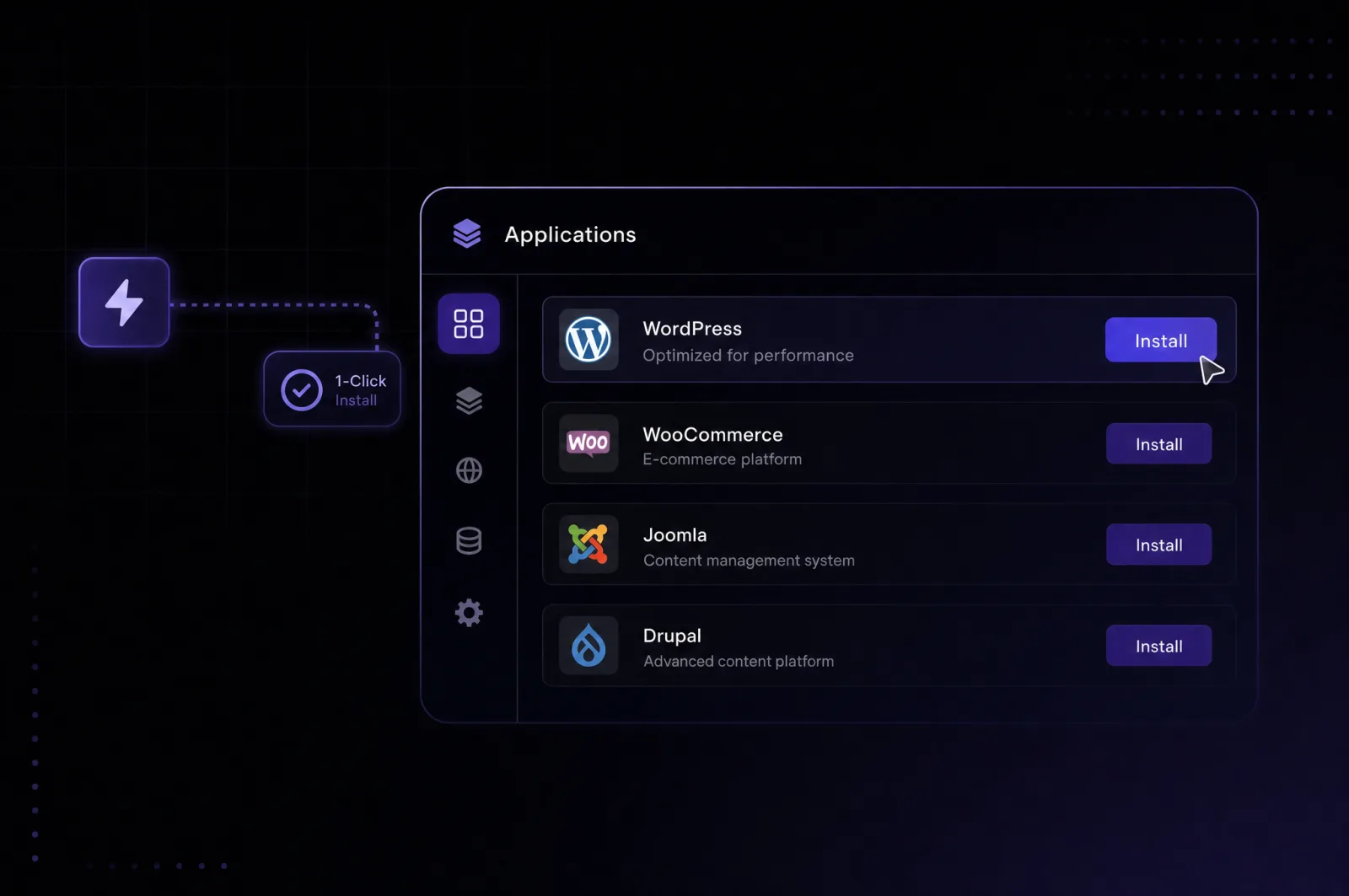
The applications screen of the control panel with one-click install

Plane features

A server surrounded by app icons — applications running on a VPS

Plane installation gives your team a full work-item tracker, not a stripped-down issue board — here's what ships in the Community Edition.

01

Work items (issues)

Rich-text descriptions, file attachments, sub-issues, and cross-references between related tasks.

02

Cycles

Time-boxed sprints with burn-down charts to track whether a team is on pace.

03

Modules

Split a large initiative into independently trackable chunks and assign them across teams.

04

Views

Save and share custom filters so each person sees only the issues relevant to them.

05

Pages

An AI-assisted wiki for specs and meeting notes that can link directly to issues and cycles.

06

Layouts

Switch between List, Kanban, and Calendar without losing your active filters.

07

GitHub/GitLab sync

Mirror repository issues into Plane so engineering stays in one tracker.

08

God Mode admin panel

Instance-level settings for SMTP, authentication, and workspace security, available once Plane vps docker deployment is running.

Requirements

Which server to run it on

Minimum requirements for Plane and the configuration worth starting with.
Minimum
  • CPU4 vCPU
  • Minimum RAM8 GB
  • Disk40 GB
Recommended
VPS Midex
  • CPU4 vCPU
  • Minimum RAM6 GB
  • Disk60 GB

Installation is free — you only pay for the server

Getting started

How to deploy Plane

Three steps and the app is running on your server.
Step 1
Choose a server

Pick a plan with at least 4 CPU cores and 8 GB RAM — Plane bundles PostgreSQL, Redis, and its own web/worker services, so headroom matters more here than for a lightweight app.

Step 2
Pick the app

Choose Plane in the marketplace to install Plane on vps automatically, with the bundled data services pre-linked so you don't configure them by hand.

Step 3
Get your credentials

Once the deployment finishes, grab the workspace URL and initial admin login from the Leneex panel to complete your first sign-in.

Why us

Why Host Plane on Leneex

Speed, protection and support you can rely on — on every plan, with no hidden limits.
Deployment speed
Plane's stack includes a web app, API server, worker, PostgreSQL, and Redis — spinning all of that up manually eats an afternoon. On Leneex it's running in minutes, so your team starts tracking cycles the same day.
Free installation
Plane bundles multiple services by design, and a provider that charges extra for a multi-container install turns a free open-source tool into a paid one before you've created a single project. Leneex deploys the full stack at no setup cost.
DDoS protection
Once a team invites clients or contractors as Guests to submit intake forms, Plane's web interface becomes reachable from outside your organization — DDoS protection keeps that entry point available under load.
Control and support
Plane's Community Edition is meant to be tuned — custom SMTP, storage backends, or a reverse-proxy domain — and that requires real root access, not a locked-down container. Engineers on call help when a Redis or worker service needs a hand at 2 a.m.
99.9% uptime with SLA compensation
Cycles run on fixed sprint dates; if the server is down when a team needs to close out a burn-down chart before a deadline, the whole sprint review slips. SLA-backed uptime keeps that from happening.
Flexible payment
Teams that self-host Plane specifically to avoid Plane Cloud's per-seat billing usually want the VPS bill itself to be simple too — card, crypto, or an invoice for accounting, no seat-counting required.
What to choose

Plane: Self-Hosted vs Cloud — Which to Choose

We compare cost, control over your data and limits, so the choice is an informed one.
Plane Cloud
Self-hosted on LeneexRecommended
Resources and limitsThe free plan is limited to 12 seats, with resources shared among other customersDedicated CPU, RAM, and disk resources, with no workspace member limit
Control and accessConfiguration is limited to workspace-level settings, with no access to the underlying infrastructureRoot server access and full God Mode configuration, including SMTP, authentication, and custom domain setup
Feature limitsTime tracking, task templates, custom dashboards, and automations are restricted to the paid Pro and Business plansAll Community Edition features (issues, cycles, modules, pages, and views) without paywalls for core use cases
ScalingScaling requires purchasing additional seats under the applicable planUpgrade your VPS plan at any time as your team or workload grows
CostRecurring monthly costs increase with each user: $6 per user for Pro or $13 per user for BusinessFixed VPS pricing regardless of the number of workspace members
Who it fitsTeams that want to get started without server administration and prefer a ready-to-use infrastructure out of the boxTeams that need data control, a custom domain, and unlimited workspace members

Self-hosting makes the clearest financial sense once a team grows past Plane Cloud's 12-seat free tier — at that point you're either paying per seat every month or paying a fixed VPS bill regardless of headcount. It also removes the seat-counting logic entirely: Guests, contractors, and full members all just work. For teams that want a zero-maintenance start with managed backups, Plane Cloud remains a sensible choice.

Frequently Asked Questions about Plane on VPS

What people ask most about Plane and our servers.

  • Plane doesn't offer a one-click cloud-to-self-hosted migration; moving requires exporting projects and issues via the API or CSV import and recreating them on your new instance.

  • Upgrading resources on Leneex doesn't touch your PostgreSQL volumes or uploaded files — the containers restart with more CPU and RAM, and your workspace, projects, and pages stay exactly as they were.

  • A minimum tier sized for Plane's stated baseline — 4 CPU cores and 8 GB RAM — comfortably supports a small team's daily use; exact concurrent-user limits depend on usage patterns like attachment sizes and cycle activity, so treat it as a starting point rather than a hard ceiling.

  • On a self-hosted VPS, you control update timing yourself — Plane ships new Docker images regularly, and applying them means pulling the updated images and restarting the stack rather than waiting on an automatic cloud rollout.

What's already configured

A one-click Plane deployment brings up the full application stack — the web frontend, API server, background worker, PostgreSQL database, and Redis cache — as linked Docker containers, so nothing needs manual wiring between services. Containers restart automatically if the VPS reboots, so a routine reboot doesn't take Plane offline.

First login

Plane's official quick-start setup creates a default admin account for initial sign-in, but exposing that same default in a public one-click deployment would be a security risk — check the Leneex control panel for your instance's actual admin email and password rather than assuming the upstream defaults apply. The workspace itself is reached through the domain or IP address assigned during deployment; from there, creating your first project takes you straight into Cycles, Modules, and Pages.

God Mode and first configuration

Instance-level settings — SMTP for outgoing invite emails, authentication providers, and workspace security — live under God Mode, accessible only to the instance admin account, not regular workspace members. It's worth configuring SMTP before inviting your team, since Plane sends workspace invitations by email and a missing mail server means teammates never receive their invite link.

Deploy Plane in about 10 minutes

Choose a server — we do the rest: install, configure and send you the credentials.