









Yes, site speed does affect SEO, but it's not a standalone "ticket to the top." Google factors Core Web Vitals — metrics tied to loading, responsiveness, and visual stability — into its ranking systems. Relevance and content usefulness remain key: a fast page with a poor answer to the user's query won't automatically outrank more useful content just because it's faster.
Here's the key thing to understand: optimizing a site isn't about chasing an abstract "100 out of 100" score in PageSpeed Insights. It's about two real goals — making pages more comfortable for visitors and eliminating technical issues that could hold back search performance.
How speed affects search rankings
The relationship between site performance and SEO can be split into direct and indirect effects.
The direct connection emerged with Page Experience. Google announced it would factor page experience signals into ranking back in 2021, with Core Web Vitals forming part of those signals. Google later clarified its approach: there's no single, standalone "Page Experience signal" — search systems weigh several signals, Core Web Vitals being one of them.
That doesn't mean improving LCP, INP, and CLS will automatically bump a page up several spots. Google explicitly warns that strong Core Web Vitals scores alone don't guarantee high rankings. Search still prioritizes showing the most relevant and useful answer to a query.
There's also an indirect effect. It's no secret that a slow page frustrates visitors: people wait longer for content to appear, run into lag when interacting with the page, or try to tap something that suddenly jumps out of place. That hurts the overall user experience and, potentially, business outcomes for the site.
That said, SEO shouldn't be reduced to behavioral metrics like "bounce rate" or "time on site." There's no solid basis for claiming that a specific bounce rate automatically triggers a specific ranking change. So claims like "if a page takes four seconds to load, Google will bury it in the results" simply don't hold up.
The bottom line: performance is an important piece of technical SEO, but it's no substitute for quality content, relevance, and the other ranking factors.
Core Web Vitals — which metrics matter
Core Web Vitals consists of three metrics: LCP, INP, and CLS. Each one measures a different aspect of how users experience a page: loading of the main content, responsiveness, and visual stability.
Metric | What it measures | Good | Needs improvement | Poor |
LCP | How fast the main content renders | ≤ 2.5 s | 2.5–4 s | > 4 s |
INP | How responsive the page is to user actions | ≤ 200 ms | 200–500 ms | > 500 ms |
CLS | Visual stability of the page | ≤ 0.1 | 0.1–0.25 | > 0.25 |
These thresholds are used to evaluate Core Web Vitals at the 75th percentile of page loads and reflect Google's guidance as of this writing.
LCP — Largest Contentful Paint
LCP shows how quickly the largest visible element of a page's main content appears — a large image, a heading, or any other prominent element. The target is 2.5 seconds or less. Google flags anything above 4 seconds as poor.
LCP isn't only affected by page size. Slow server response, slow-loading images, render-blocking CSS, or connection issues can all push back the time it takes for the main content to appear.
INP — Interaction to Next Paint
INP measures how responsive a page is during user interaction — a click, a button press. A good score is 200 ms or less. It's important not to confuse INP with the deprecated FID metric. On March 12, 2024, INP officially replaced FID as part of Core Web Vitals.
CLS — Cumulative Layout Shift
CLS measures how much page elements unexpectedly shift around during loading and use.
A user is about to tap a button, but an ad block suddenly pops in above it and pushes the button further down. That's a classic visual stability problem. A good score is 0.1 or less; anything above 0.25 is considered poor.
How to measure your site's speed
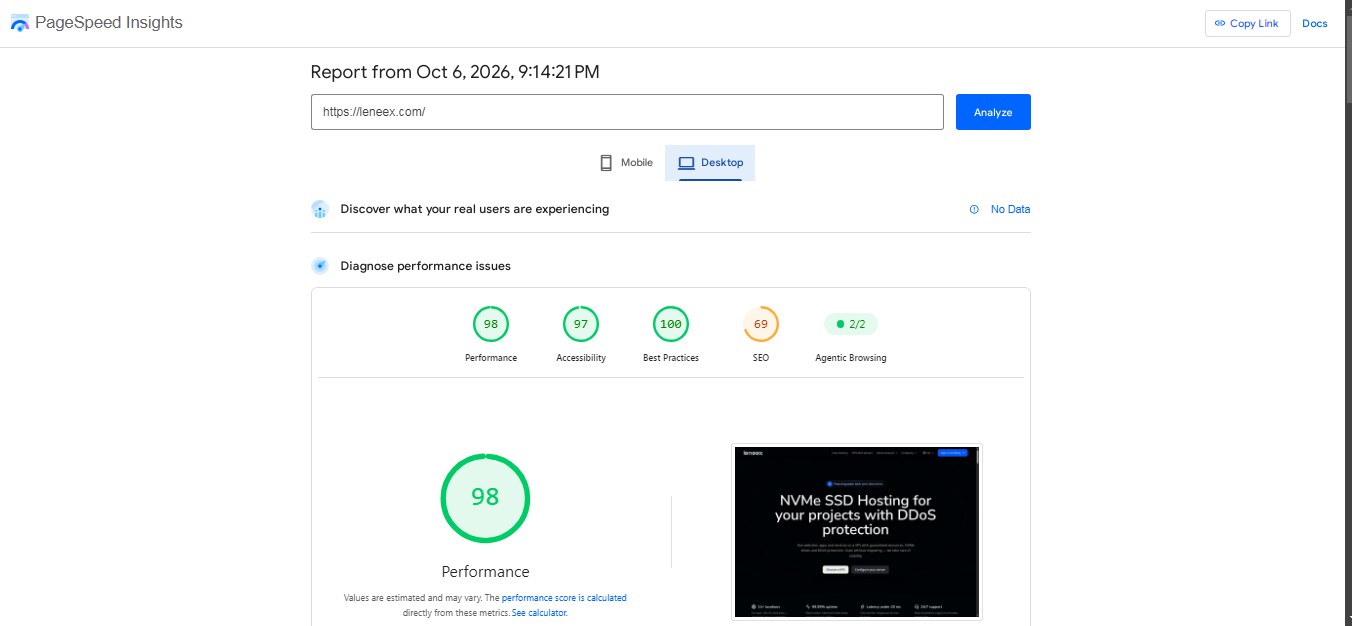
You don't need special software to run diagnostics. Start with a few tools.
PageSpeed Insights. Shows data for a specific page. The report includes lab data from Lighthouse and, where available, real-user data from the Chrome User Experience Report (CrUX). This lets you see controlled test results alongside actual user experience at the same time.
Google Search Console. The Core Web Vitals report helps surface performance issues across your site's pages and shows which URL groups need attention. It's especially handy for monitoring an entire site rather than a single page.
Lighthouse. This tool runs a lab analysis of a page and helps pinpoint specific technical issues: heavy assets, render-blocking elements, JavaScript problems, and other potential causes of poor performance.
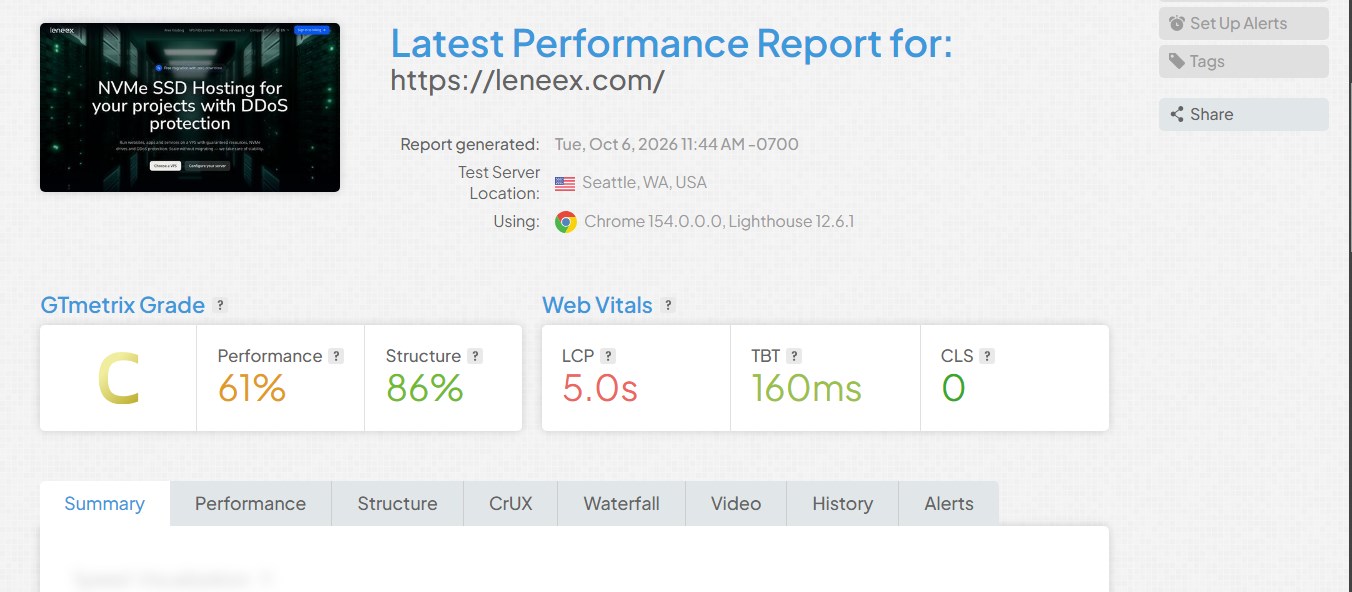
GTmetrix. A third-party service for technical analysis of page loading. It's handy for extra diagnostics and for examining the sequence in which resources load.
It's important to understand the difference between lab data and field data. Lighthouse tests a page under controlled conditions. Field data is collected from real users' devices and networks. That's why two reports for the same page can show different results — and that's normal. Google also points out that real-world user experience depends on the device, network, and visitor behavior.
What affects site loading speed
The root causes aren't limited to the server. Broadly, they fall into two categories.
On the client side:
oversized images;
inefficient image formats;
too much JavaScript;
unnecessary CSS files;
third-party scripts and widgets;
missing or misconfigured caching;
too many requests;
no CDN where one is actually needed.
On the server side:
slow request processing;
high TTFB (Time to First Byte);
insufficient CPU or RAM;
slow disk subsystem;
unoptimized database;
overloaded server;
suboptimal web server configuration;
the server being physically far from the main audience.
It's worth treating TTFB as a diagnostic indicator. It reflects the time until the first byte of the response arrives and can depend on the network connection, request processing, and infrastructure. A high TTFB alone doesn't tell you much — it's essentially just an automatic flag that something's off with hosting. The real cause could lie elsewhere: the application, the database, server settings. You have to dig in and look.
Check the server side if a site takes a long time to respond before the page even starts rendering. Many users don't even realize that's where the problem lies. Often it comes down to limited resources or hitting the cap of the current plan. In that case, switching to a different type of hosting, such as a VPS with more suitable resources, can be part of the fix. Geography matters too: hosting the server closer to your main audience can reduce network latency.
How to speed up a site — practical steps
Don't start by buying a beefier server. First, pinpoint the bottleneck.
Optimize images. Compress photos and graphics. Use modern formats where appropriate, and don't upload an image at a resolution far larger than its displayed size.
Cut unnecessary JavaScript. Review third-party widgets, ad scripts, analytics tools, and plugins. Every extra script adds work for the browser and hurts responsiveness.
Optimize CSS. Remove unused styles and minify the CSS files you actually need. Pay attention to resources that block page rendering.
Set up caching. Static assets shouldn't be reloaded unnecessarily — browser caching and server-side caching both help cut down on repeat requests.
Use a CDN. A CDN places copies of static assets closer to users and can reduce network latency. The benefit is especially noticeable when your audience is geographically spread out.
Check the server and TTFB. If the browser waits a long time for the first response, dig into server logs, CPU and memory load, the database, and application behavior. Only after this diagnosis should you decide whether you need a resource upgrade or a different hosting type.
Update PHP and your software environment. For CMS platforms like WordPress, running a current, supported PHP version along with compatible plugins can boost both performance and security. Before updating, check site compatibility and make a backup.
Re-measure the results. After making changes, check the page in PageSpeed Insights again and, for real-world user data, keep an eye on Core Web Vitals in Search Console. Not every technical tweak will noticeably move the needle, so it's best to let measurements guide your optimization rather than assuming that more changes automatically means better results.
One more thing worth remembering: chasing a perfect 100 score in PageSpeed Insights at any cost shouldn't be the goal. Google explicitly notes that high scores in tools like this don't guarantee high rankings on their own, and pushing every metric to perfection purely for SEO's sake can be an inefficient use of resources.
Conclusion
Site speed matters for SEO, but it shouldn't be overrated. Google factors Core Web Vitals into its ranking systems, yet strong LCP, INP, and CLS scores alone won't push a page to the top. The sensible approach is to measure performance first, identify the bottleneck, and only then move on to optimization. For one page, simply compressing images and trimming unnecessary JavaScript might be enough; for another, the real culprit could be slow server-side processing and a high TTFB.
If diagnostics point to a server-side bottleneck, one option is moving to a more powerful VPS or adjusting the server configuration. But that's just one piece of the optimization puzzle — alongside code, images, caching, CDN usage, and the quality of the content itself.